Shared Inbox

The Ultimate Guide to Shared Inbox: Benefits, Use Cases & Best Practices

Collaborate faster, automate workflows and build genuine, 1:1 conversations with your customers at scale with shared team inbox for a team.

No credit card required. Easy setup

Shared Inbox

Trusted by Leading Brands

Develop Effective Communication with Shared Inbox for Teams

Shared inbox serves as the one-stop solution for streamlining communication, reducing customer response time and enhancing team collaboration.

Omnichannel Inbox

Connect with customers across multiple communication channels such as email, live chat, Facebook, Twitter, etc. Everything is centralized in one team inbox.

Centralized Dashboard

Achieve the business’s Key Performance Indicators (KPIs) and provide a superior customer experience. Access actionable customer insights from a single, user-friendly dashboard.

Integrated Knowledge Base

Equip the customer support team with a comprehensive knowledge base. Empower them to deliver conversations more effectively.

Workflow Automation

Streamline the customer support process by creating customized workflow rules that automatically route and escalate conversations.

Team Collaboration

Promote seamless collaboration among team members through a shared inbox solution. Make communication seamless and enhance efficiency in managing incoming emails.

Intelligent Routing

Empower the customer support team with intelligent routing capabilities. It ensures that inquiries are directed to the most appropriate team member for faster responses.

Effective communication and collaboration are paramount to success. Yet, many teams still struggle with siloed inbox. It leads to missed messages, miscommunication and a lack of transparency.

The team inbox is more than just a centralized repository for emails. It offers advanced features that take team collaboration to new heights. Let’s explore how a shared team inbox can revolutionize a team’s communication.

What is a Shared Inbox?

A shared inbox is a centralized email platform for multiple team members to access, manage and respond to messages from a unified place. It eliminates scattered communication and forwarded threads.

The collaborative structure suits support, sales and operations teams that handle high email volumes. Team members can assign, tag and track conversations to make sure accountability as well as proper visibility into every customer interaction.

Key objectives:

  • Consolidates all incoming messages into one accessible inbox for the entire team.
  • Assigns clear ownership of each conversation to prevent tasks from being overlooked.
  • Real-time visibility enables quick collaboration while reducing customer wait times.
  • Provides complete transparency into conversation history to help teams maintain context across handoffs.

Shared Inbox Benefits for Team Collaboration

A shared team inbox significantly enhances a brand’s teamwork and collaboration by automating tasks. Here are some more shared inbox benefits:

Shared Inbox Benefits for Team Collaboration

1. Unified Cross-Channel Messaging

Customers interact with businesses through various channels, including email, social media, live chat and more. A shared inbox consolidates all the communication streams into a single unified platform. It ensures every message is noticed and the teams can seamlessly manage inquiries from multiple channels.

2. Better Customer Service

A team inbox is a game-changer for customer service teams. Teams can respond more efficiently with complete visibility into all incoming requests. It reduces response times and minimizes frustration for customers. Collaboration features allow team members to leverage collective knowledge.

3. Seamless Collaboration

Traditional email setups often lead to siloed communication and duplication of efforts. A team inbox enhances seamless collaboration. It enables team members to work together on email responses and assign tasks to the appropriate individuals. The collaborative email approach ensures consistent messaging and promotes knowledge sharing.

4. Easier Organization

A shared inbox keeps communication streamlined and structured. Features like email assignments, labels, filters and search capabilities make it easier to prioritize tasks. The organization enhances team productivity and ensures nothing slips through the cracks.

5. Automated Task Assignment

Manual task assignments can be time-consuming and prone to errors. Team inbox offers automation that routes incoming messages to the appropriate team. It ensures inquiries are handled by the most qualified team members from the outset.

6. Improved Security and Compliance Management

A collaborative inbox can be an instrument for maintaining secure communication in industries with strict compliance requirements such as healthcare or legal services. Teams can ensure sensitive information adheres to regulatory standards with centralized access controls.

6 Must Have Shared Inbox Features

The right team inbox can make a huge difference in how the team communicates and stays organized. We’ll discuss 6 must-have shared inbox features.

features of Shared Inbox

1. Centralized Inbox

A single inbox centralizes customer conversations, notifications and task assignments into one workspace to eliminate scattered interactions. It enables teams to no longer juggle multiple logins or miss messages buried in individual mailboxes.

2. Workflow

Automation workflows provide a clear view of steps, tasks, assignments and deadlines to eliminate confusion around ownership of the conversation. Teams can use this to handle repetitive processes such as email-based assignment on predefined criteria or triggering actions.

3. Collaborative Workspace

Real-time updates and notifications bout ongoing activity keep team members informed. These threaded conversations with full context prevent information loss during handoffs. Members can use @mentions to notify relevant colleagues and pull them into conversations when needed to resolve complex inquiries.

4. Custom Labels

Custom labels enable teams to organize and categorize emails based on specific operational needs. Labeled categories help teams manage workload based on urgency while ensuring the right team member addresses each inquiry without delay.

5. Integrations

Shared inbox integrates with a CRM and customer data platforms to build a complete 360-degree customer view, connecting communication history with business context. It keeps the team working from a single interface, allowing the inbox to be precisely tailored to operational needs.

How to Setup Shared Inbox for Team Collaboration?

We will discuss the vital steps to create an effective shared inbox. Understand how to set up permissions, organise folders and implement best practices for managing emails more efficiently.

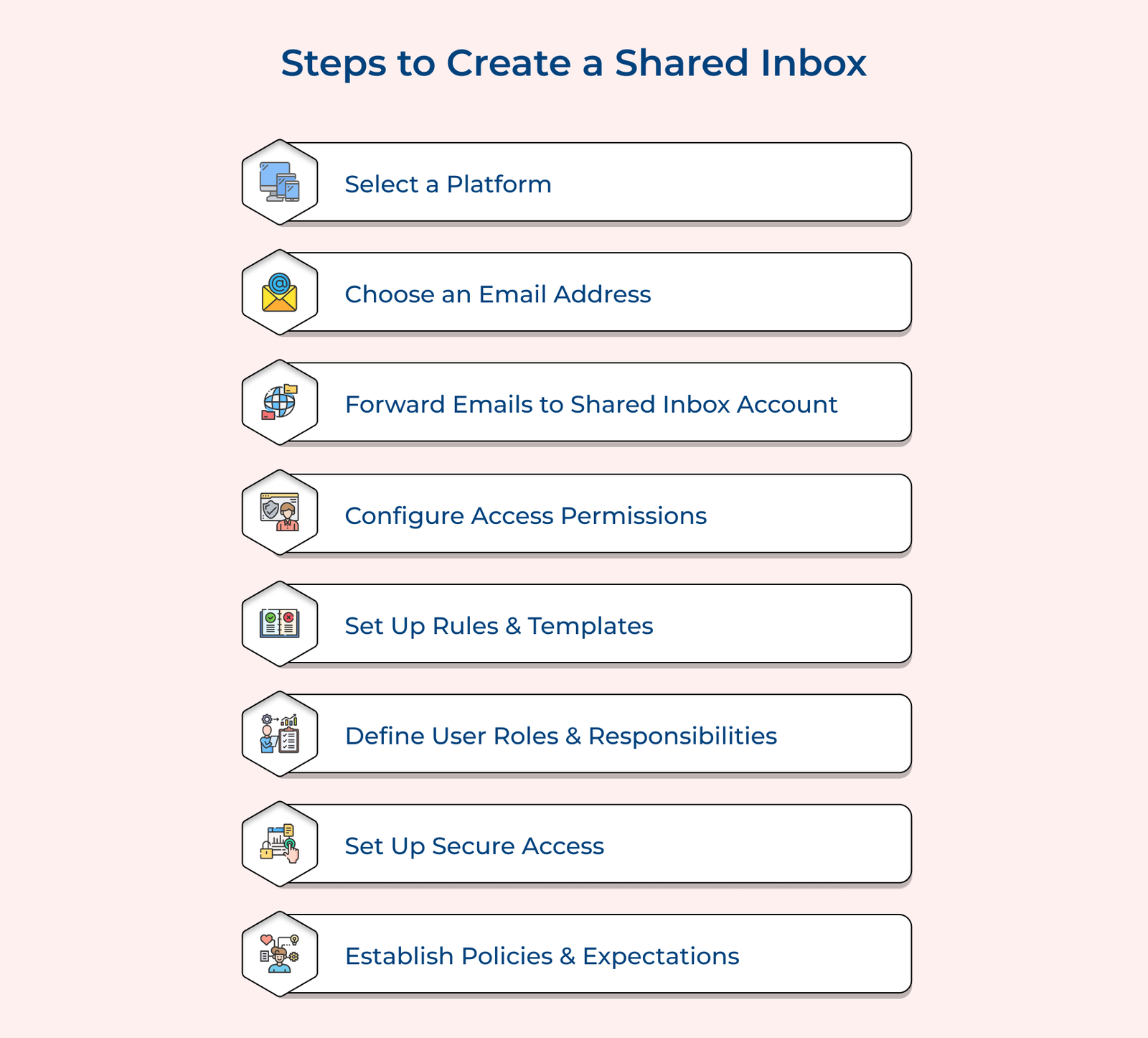
Steps To Create a Shared Inbox

1. Choose Software Built for Team Collaboration 

Choose a platform that meets the team’s specific needs and integrates smoothly with existing tools. It should offer features with respect to the team’s actual workflow instead of generic functionality.

Evaluate how easily it can integrate with existing systems like your CRM. Businesses can understand the limitations that demos often overlook by enrolling in a trial period before committing.

Selection factors to consider:

  • Integration Compatibility: Make sure the software can connect seamlessly with your existing tools.
  • Scalability: Choose a platform that can scale based on your team’s expanding requirements.

2. Choose a Professional Team Email Address 

Select a professional email address that clearly aligns with the team’s or department’s core function. Email addresses such as support@company.com or sales@company.com are common types that signal purpose to receiving communication.

Avoid overly generic addresses, as these can confuse external contacts about whom they are actually reaching. A well-chosen address reinforces brand consistency across every touchpoint.

3. Centralize Emails from Individual Accounts 

Setup individual team members’ email accounts that automatically forward relevant emails to the shared inbox address. It makes sure that all communication is centralized and accessible to the entire team instead of personal inboxes.

Proper forwarding rules help in avoiding duplicate threads or missed context during the transition. Before fully relying on it for daily operations, test the configuration thoroughly 

4. Configure Team Access Permissions 

Identify which team members need to have the access of shared inbox. This may include read-only access for some members while full read and write access for others managing active conversations.

Define permissions based on:

  • Role Sensitivity: Restrict full access to roles handling confidential information.
  • Task Requirements: Grant write access only to members who are actively responding to conversations.
  • Audit Needs: Maintain proper visibility to track who is accessing or modifying specific emails.

Businesses need to review permission levels periodically as roles shift, while over-permissioning creates unnecessary risk slowing down response times.

5. Set Up Rules & Templates for Consistent Team Responses 

Automate common tasks and maintain consistency across every response by establishing clear routing rules and predefining email templates. Routing rules can automatically assign incoming emails based on specific predefined criteria.

Redefined templates streamline responses for frequently asked questions or recurring scenarios. Well-designed templates help in reducing onboarding time for new team members.

Useful automations to configure:

  • Keyword-Based Routing: Automatically assign emails based on specific terms to relevant departments.
  • Response Templates: Streamline replies for frequently asked questions or customer scenarios.

6. Define Team Roles & Responsibilities

Define clear roles and responsibilities of each team member to avoid overlap or confusion. This includes assigning specific tasks such as triaging incoming emails or escalating complex issues to the right person.

Maintain proper documentation of these responsibilities so expectations remain clear even when team composition changes. Businesses also need to regularly revisit role assignments to make sure workload stays balanced across the team.

7. Enable Collaboration Features (Notes, Tags & Assignments) 

Built-in collaboration tools such as internal notes, tags and email assignments keep the team aligned without leaving the inbox. 

  • Internal notes enable members to flag context on a thread without emailing the customer.
  • Tags help categorize conversations based on topic or priority to filter and report on inbox activity. 
  • Email assignment to specific individuals prevents duplicate replies while maintaining accountability for every conversation.

8. Set Up Secure Access 

Appropriate security measures protect sensitive information and maintain data privacy across the shared inbox. This includes:

  • Two-factor authentication
  • IP whitelisting
  • Encryption for particularly sensitive communications.

As team size grows and threats evolve, it is recommended to regularly audit access logs and update security protocols. Strong security practices protect organizational trust and compliance standing.
Shared Inbox vs Help Desk: What Business Need the Most?

The right choice between a shared inbox and a help desk depends factors and support process. Here’s a quick comparison to help you decide.

Shared Inbox vs Help Desk
  1. Purpose & Use Case

A shared inbox works well for small teams handling low-volume customer queries together. A help desk is built for businesses managing higher ticket volumes that need more structure. It supports organized customer support operations as the business grows.

  1. Team Collaboration

Shared inboxes offer internal notes and simple assignment features to ensure team members can work in a loop. Help desks add structured collaboration by including SLA tracking and escalation paths to provide accountability across the team.

  1. Automation & Workflows

Shared inboxes help with auto-tagging or simple routing rules based on keywords. It lacks multi-step workflows for handling complex ticket scenarios. Help desk support includes triggers, chatbots and multi-step workflows to automate repetitive manual work.

  1. Reporting & Analytics

Shared inboxes typically show response counts or reply times with clear visibility into individual agent performance, resolution speed or overall customer satisfaction trends. Help desks provide detailed dashboards to helps managers make informed decisions around process improvements.

How Can AI and Automation Improve a Shared Inbox?

AI and automation transform a shared inbox from a simple mailbox into a smart, efficient support hub. Here’s how they help.

    1. Smart Ticket Routing

    AI automatically assigns incoming messages to the right agent based on topic, urgency, expertise, or current workload, significantly cutting response delays and improving team efficiency.

    This ensures customer queries never sit unattended in a crowded inbox. Smart routing balances workload evenly across agents, preventing burnout while keeping resolution times consistently fast.

    1. AI-Powered Reply Suggestions

    Automation drafts quick, context-aware reply suggestions by analyzing past conversations and knowledge bases, helping agents respond faster while maintaining consistency, accuracy, and a professional tone.

    Agents can edit suggestions instead of writing from scratch, saving significant time on repetitive queries. This boosts productivity while ensuring every customer receives accurate, on-brand responses.

    1. Automated Tagging & Categorization

    AI automatically labels emails by intent, urgency, or department, reducing manual sorting effort and helping teams instantly prioritize important conversations without wasting valuable agent time.

    Proper categorization also improves reporting accuracy and helps identify recurring issues. Teams can spot trends faster, enabling proactive fixes instead of reactive, one-off responses later.

    1. Sentiment & Priority Detection

    Automation flags frustrated customers or urgent issues using sentiment analysis, ensuring critical messages get immediate attention and preventing minor problems from escalating into bigger ones.

    This helps managers monitor overall customer mood and intervene early when needed. Proactive detection protects customer relationships and reduces the risk of negative reviews or churn.

Shared Inbox Use Cases

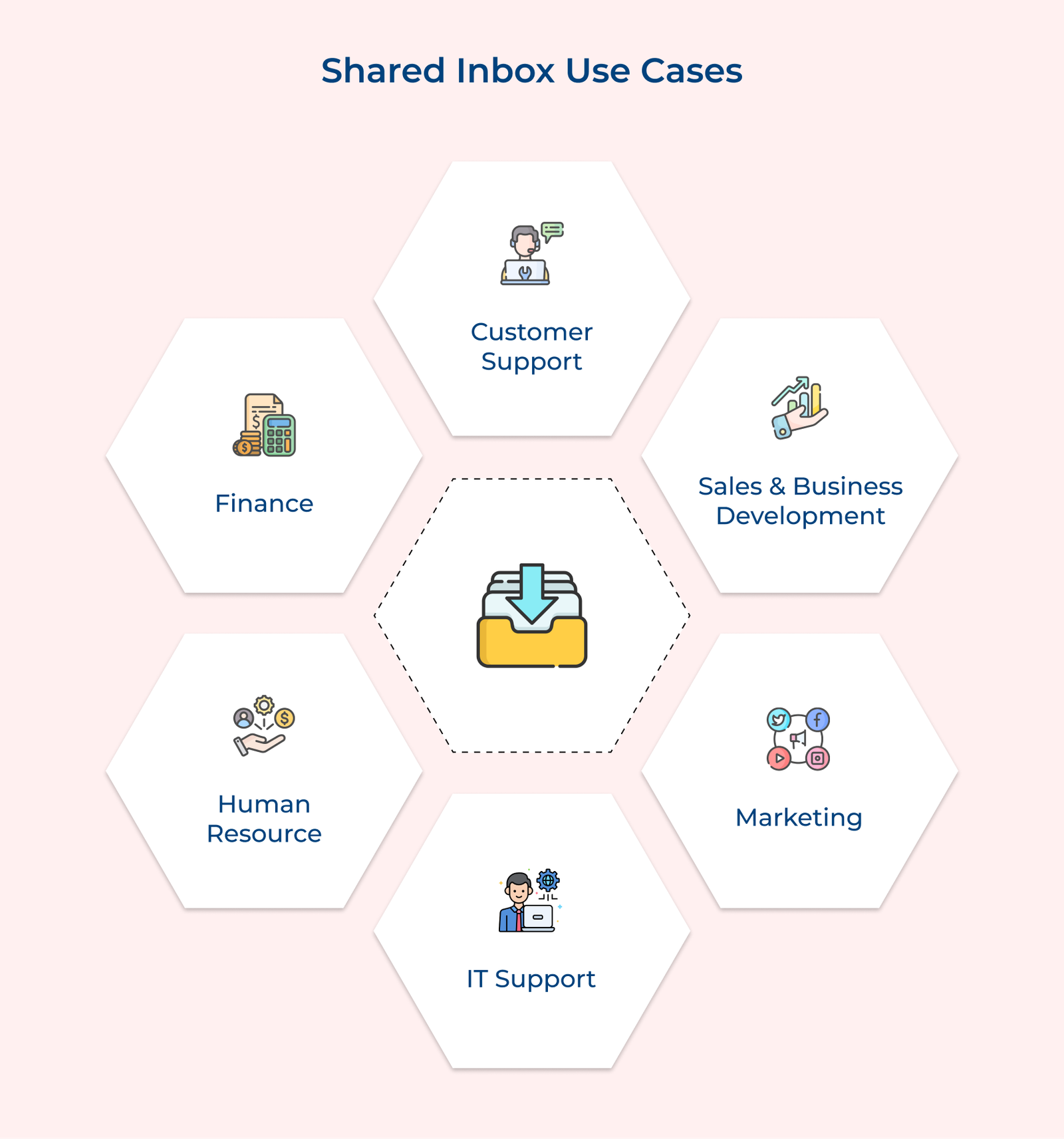
Businesses can learn how team inbox benefits them by seeing their usage across various sectors. Here are key shared inbox use cases across different industries:

Shared Inbox Use Cases

1. Customer Support

Help desk teams often deal with a high volume of inquiries coming in through various channels like email, chat and social media. A shared inbox allows the entire support team to have visibility into all incoming queries. It helps to maintain a consistent voice and quality of support across the team.

2. Sales

A team inbox can be instrumental in managing leads and opportunities in sales organizations. Instead of individual sales reps working in silos, the entire team can access a centralized inbox for inbound leads. It promotes transparency and ensures leads are promptly followed up on by the appropriate team member based on factors like territory or availability.

3. Human Resources

HR teams often receive a high volume of inquiries from employees, job applicants and other stakeholders. A team inbox allows HR professionals to collaborate on responses, ensuring consistent information is provided. It facilitates seamless handoffs during employee onboarding or offboarding processes. All relevant communication is centralized and accessible to the entire team.

4. Marketing

Marketing teams can benefit from a shared inbox for managing various campaigns, events and initiatives. It allows for better coordination among team members such as content creation and event management. The centralized approach ensures seamless communication and prevents important details from being missed.

5. IT Support

IT help desk teams often receive a diverse range of inquiries and service requests from employees or customers. A team inbox enables efficient ticket management, as team members can collaborate on troubleshooting complex issues and assign tickets based on expertise. It maintains a clear record of all communication and resolution steps.

Differences Between Shared Inbox & Traditional Email

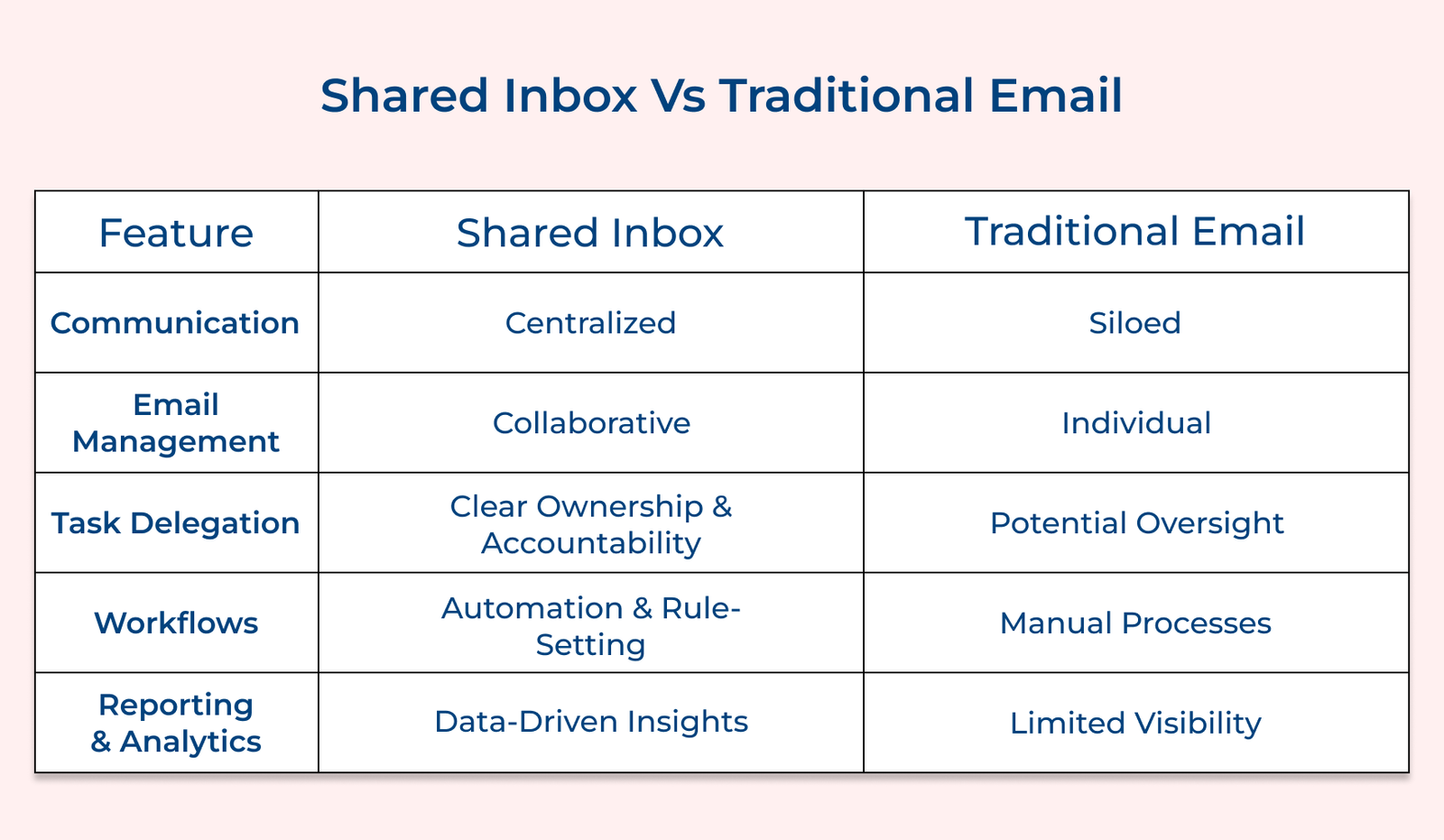
Differentiating shared inbox from traditional email is crucial due to their unique advantages. Let’s delve into the key differences to gain a comprehensive understanding.

Shared Inbox Vs Traditional Email

1. Centralized communication: Traditional email relies on individual inbox, leading to siloed communication and potential missed messages. A shared inbox provides a centralized communication hub accessible to the entire team. It ensures no email goes unnoticed and promotes transparency, as everyone can respond to incoming messages.

2. Collaborative email management: Team members often resort to forwarding, CC-ing and manually keeping others in the loop with traditional email. A team inbox eliminates the inefficient process by enabling true collaborative email management. Team members can assign emails to each other, add notes and collaborate on drafting responses.

3. Task delegation and accountability: Task delegation and accountability can be challenging in traditional email setups, as emails may get lost or overlooked in individual inbox. Team inbox solves the issue by allowing members to assign specific emails to each other. It ensures clear ownership and responsibility for each task or inquiry.

4. Automation and workflow optimization: Team inbox often offer automation and rule-setting capabilities that traditional email lacks. Teams can set up rules to automatically assign emails based on keywords, subject lines, or predefined criteria. It helps streamline workflows and ensure the right person handles each inquiry from the start.

5. Data-driven insights: While traditional email provides limited visibility into team performance, shared inbox offers valuable analytics and reporting features. Teams can track metrics like response times, productivity and customer satisfaction. It enables data-driven decision-making and continuous improvement.

Shared Inbox Best Practices

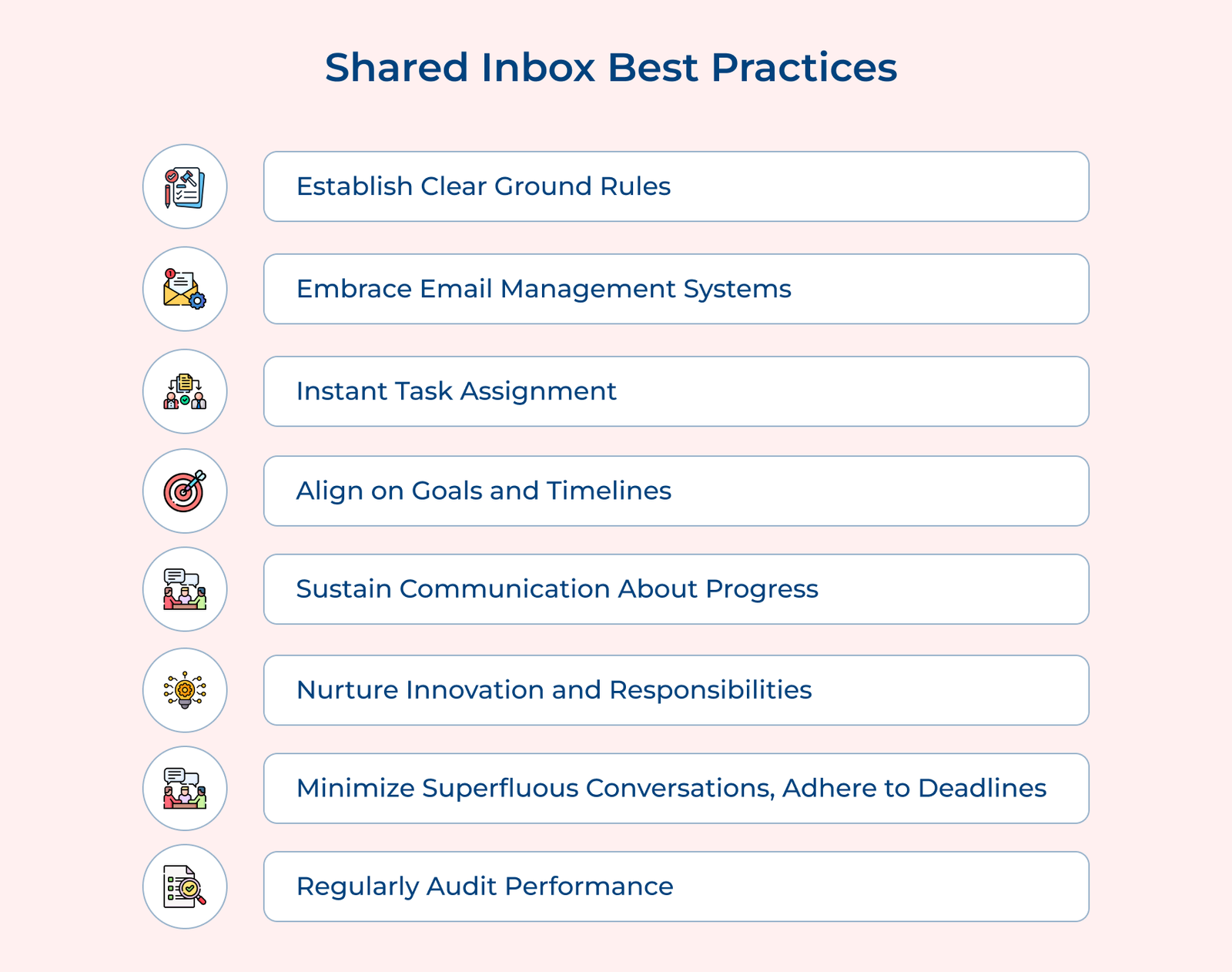
Consider these shared inbox best practices to create more organized email management for your team:

Shared Inbox Best Practices 
  1. Establish Clear Ground Rules
    Lay the foundation for effective collaboration by ensuring that every team member comprehends the shared inbox’s dynamics. Establish protocols, guidelines and policies for its usage. It creates a shared understanding that promotes consistency and avoids confusion.
  2. Embrace Email Management Systems
    Implement an email management system that streamlines the handling of incoming messages. Facilitate the assignment of priority levels, the application of labels for improved organization and the archival of conversations. Such structuring enhances efficiency and accessibility.
  3. Instant Task Assignment
    Maintain a proactive approach to task distribution list directly from the shared email inbox. It prevents tasks from slipping through the cracks and ensures that responsibilities are promptly allocated among team members.
  4. Align on Goals and Timelines
    Promote cohesion by setting collective objectives along with defining timelines for task completion. It ensures clarity by assigning tasks to specific team members and establishing accountability for each responsibility within the shared mailbox.
  5. Sustain Communication About Progress
    A continuous flow of communication is pivotal to keeping all team members abreast of the progress made on tasks originating from the shared mailbox. Regular updates enable informed decision-making and facilitate seamless collaboration.
  6. Nurture Innovation and Responsibilities
    Encourage the exploration of inventive approaches to address challenges.
    Promote an environment where team members can communicate novel ideas related to the shared mailbox’s efficient utilization. Monitor progress and adapt strategies as needed.

Measuring Shared Inbox Performance (KPIs & Metrics)

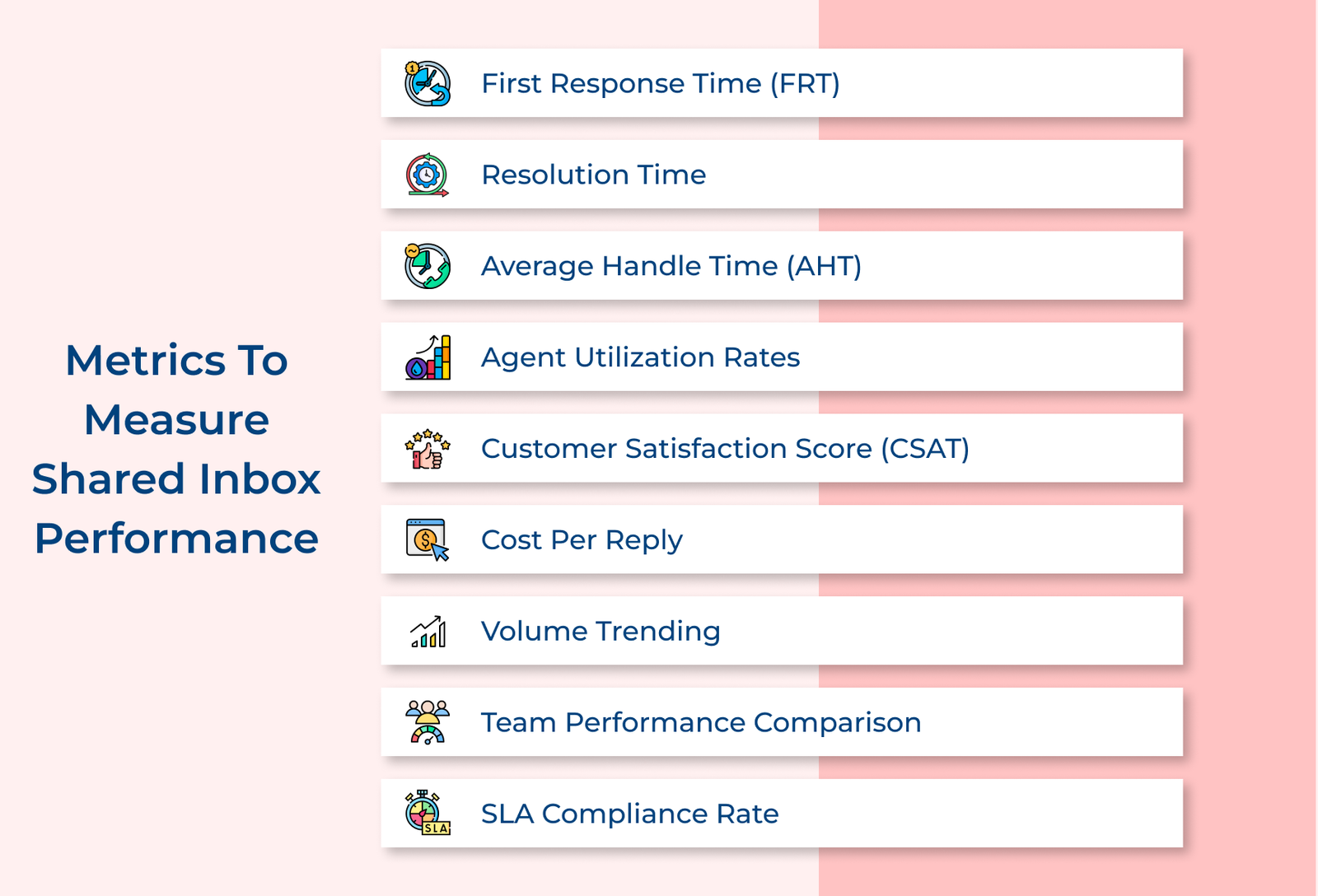
Measuring the performance of a shared inbox is essential for understanding how effectively it is being utilized within an organization. Here are some KPIs and metrics businesses should consider when evaluating a shared inbox performance.

Metrics to Measure Shared Inbox Performance
  • First response time (FRT): FRT is the average time between a customer’s initial message and the first response from the support team. A lower response time means customers are likely to receive quicker resolutions and return with higher satisfaction ratings.
  • Resolution time: The average time it takes for a customer inquiry to be resolved or responded effectively without further follow-ups requested by them.
  • Average handle time (AHT): AHT is how much time it takes an agent to complete a specific task or reply. It helps customers resolve their issues or answer their questions accurately.
  • Agent utilization rates: Monitor agent response times to handle customer queries by tracking agent utilization rates and measuring their time spent on emails.
  • Customer satisfaction score (CSAT): A good customer experience can be measured through a customer satisfaction score. Keep track of how customers rate their experience with service teams in a shared inbox environment.
  • Cost per reply: Cost per reply is the time and money invested, related to resolving inquiries within a team inbox environment.
  • Volume trending: Volume trending is a parameter that allows businesses to measure if the number of inquiries sent over a given period has been increasing or decreasing.
  • Team performance comparison: Analyze which team member is currently performing better than other members in terms of metrics like resolution rate.
  • SLA compliance rate: SLA Compliance rate is how often the team meets commitments during customer inquiries with corresponding response email timelines.

Best Shared Inbox Tools

Having a shared inbox simplifies team collaboration without creating multiple conversations. We have shortlisted the best shared inbox tools for businesses that suit their business requirements

1. Veemo Support

Best shared inbox software for omnichannel customer support

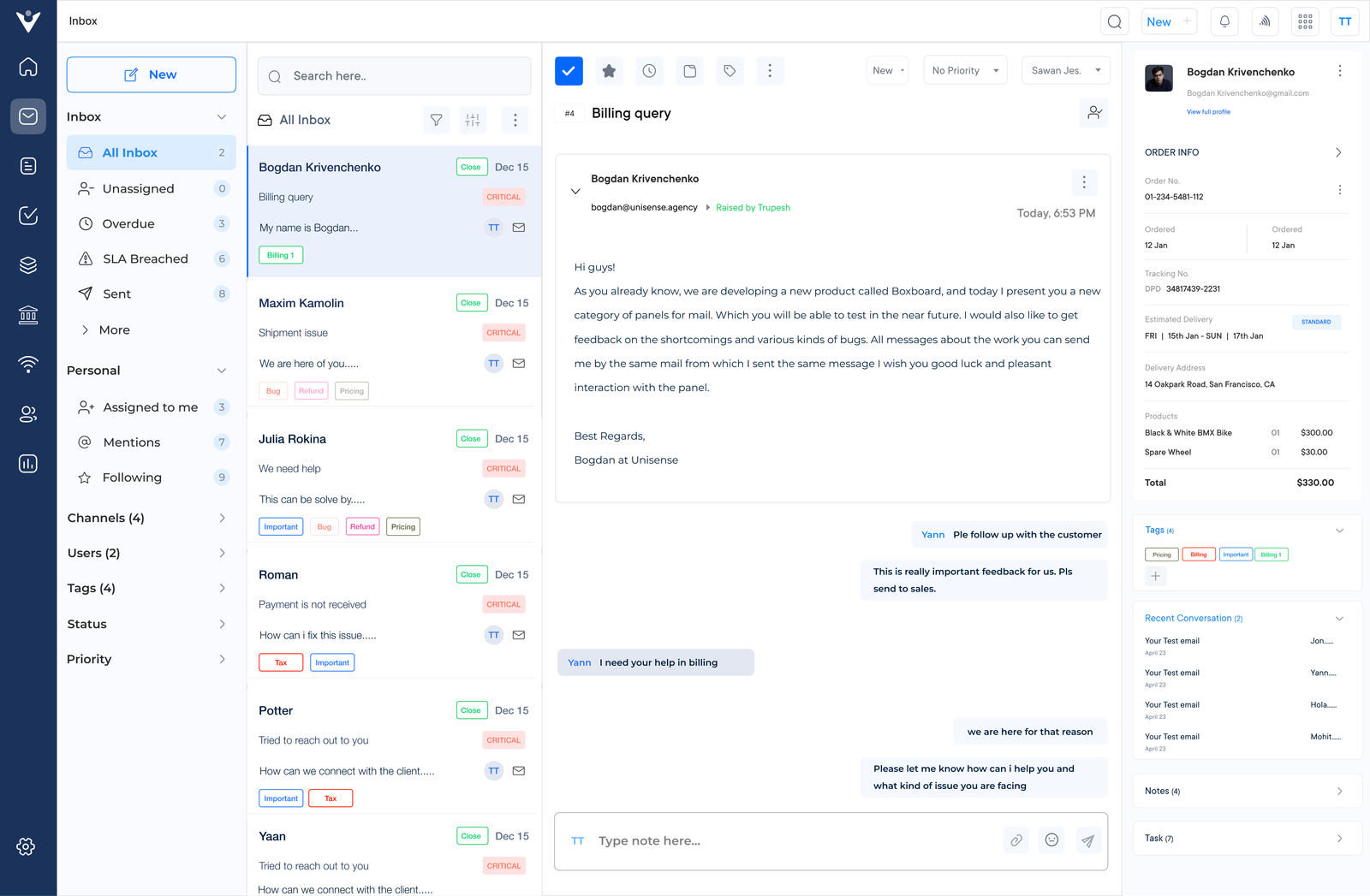
Veemo Support Inbox

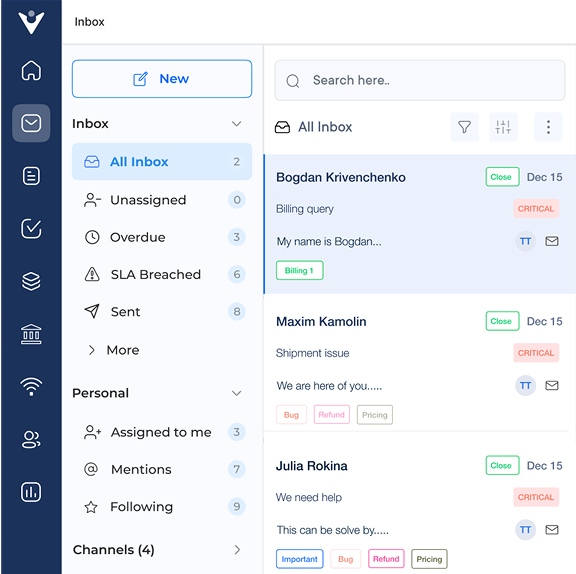
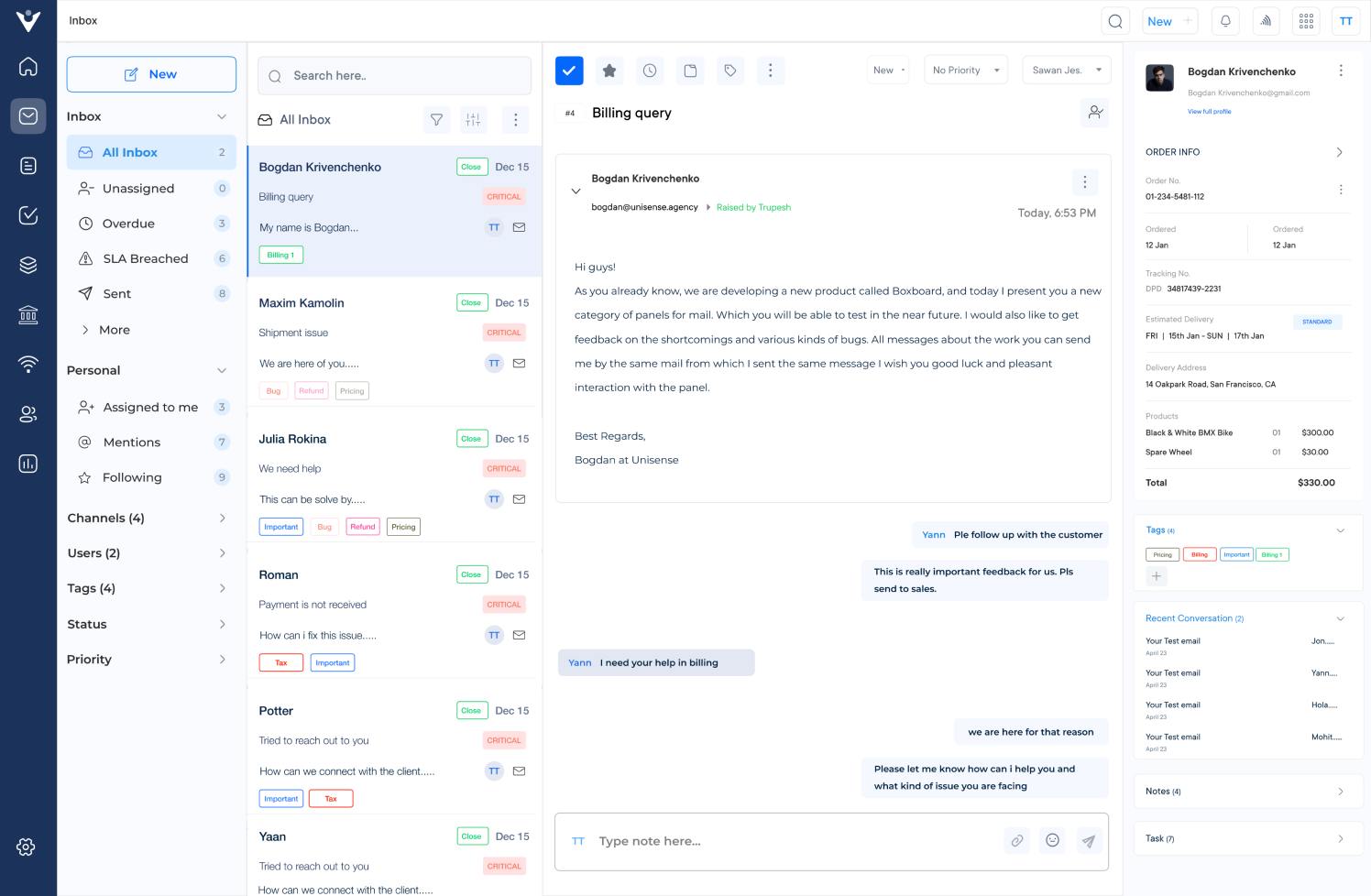
Veemo Support is an AI-powered customer support and help desk platform that includes a shared inbox for businesses to collaborate across teams for better conversation management. It can be integrated with existing systems to streamline business operations and also offers intuitive automation capabilities with simple task management features.

Key features:

  • Omnichannel support: Connect with customers in real-time through their preferred channels to ensure swift issue resolution.
  • Self-service knowledge base: Empower customers with a robust knowledge base to help them independently troubleshoot issues in real-time.
  • Advanced routing and workflows:  Seamlessly direct customer requests to the appropriate teams to minimize response time and ensure accurate solutions.
  • Tags and filters: Allow agents to categorize customer conversations using tags and filters. This enables teams to easily prioritize and search for specific queries to provide accurate responses.

2. Omni24

Top team inbox software for multichannel engagement

Omni Inbox

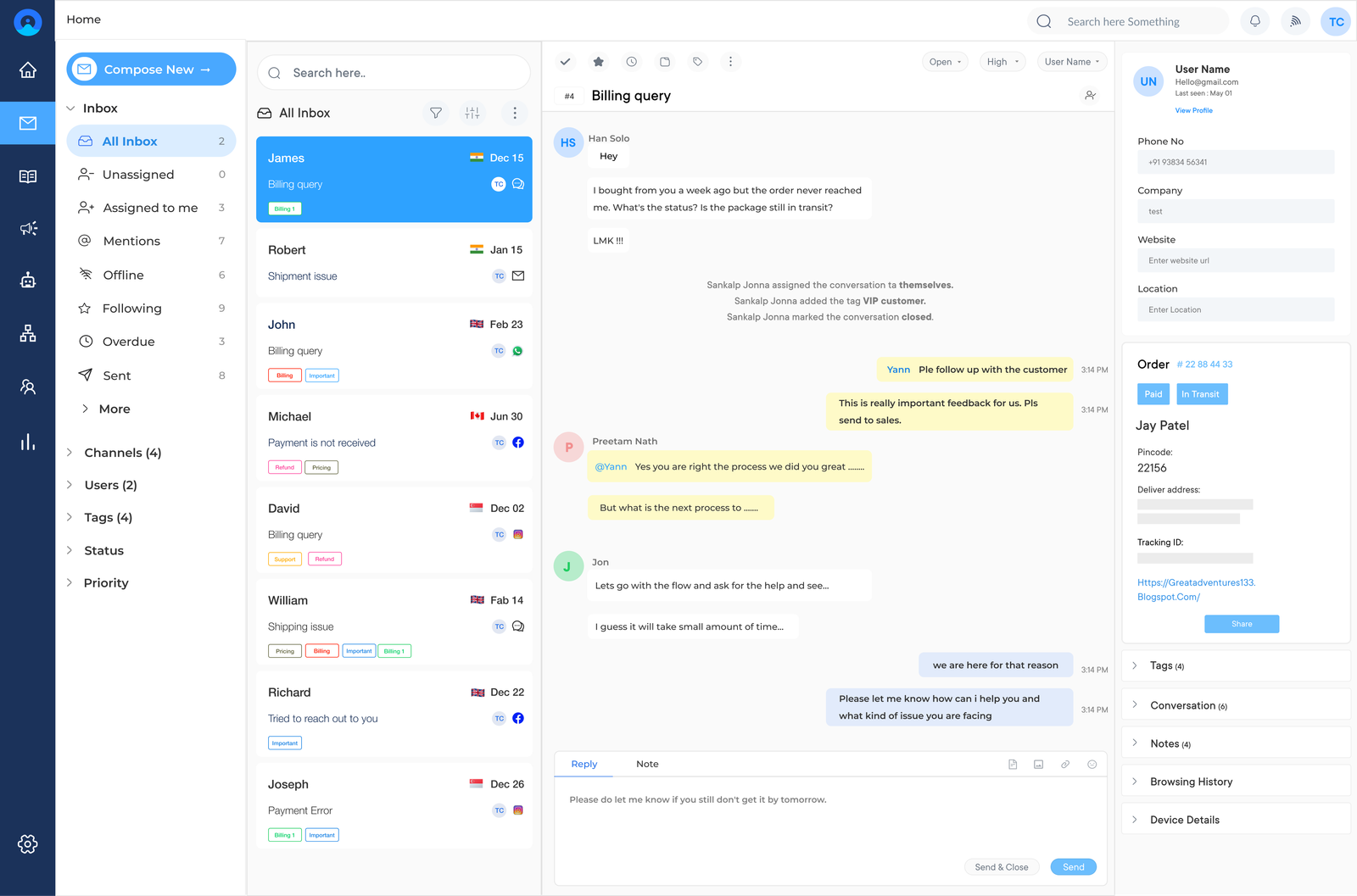
Omni24 is an omnichannel customer engagement platform that combines support, sales and marketing suites to maintain overall business operations. Its support suite includes a shared inbox that manages customer emails from multiple users in one place. Omni24 streamlines how teams collaborate on email conversations and provides advanced analytics for better insights.

Key features:

  • Omnichannel Support: Allows agents to have omnichannel interactions through their preferred channel.
  • Knowledge base: Empower customers to find solutions independently with a knowledge base. Businesses can address common queries before they even reach out to customers.
  • AI-powered chatbots: Unlock real-time digital customer care around the clock with AI Chatbots for a seamless experience that sets new standards.
  • Feedback surveys: Gain valuable insights into customer expectations with feedback surveys to make significant improvements and tailor the approach for greater satisfaction.
  • SLA management: Empower support agents with effective planning tools that align with digital customer service standards. It lets them set and meet goals to provide an efficient customer support experience.

3. HiverHQ

Ideal shared inbox tool for omnichannel customer support

Hiver HQ shared Inbox

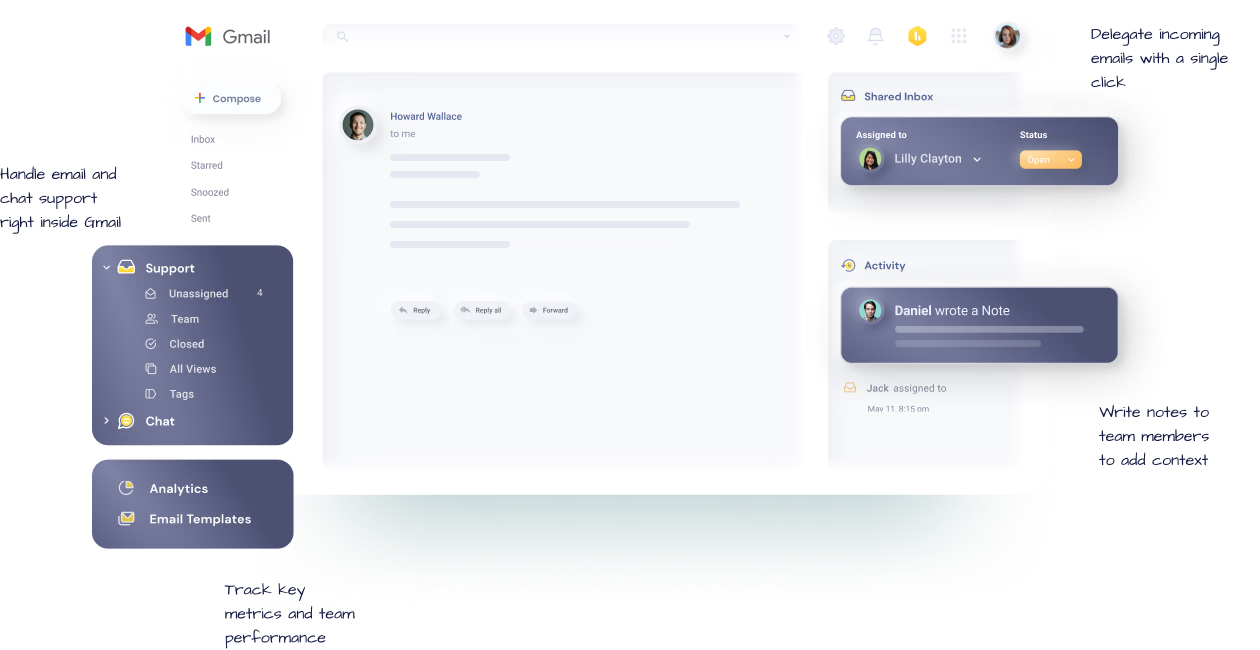
HiverHQ makes it easy for teams to work together on a shared inbox. The software offers comprehensive search functionality so that users can quickly get up to date on where their team left off with clients when they join the conversation. The other handy features include the automatic assignment of tasks based on role permissions, cross-team collaboration tools and private note-sharing for internal discussions.

4. Drag

Robust shared inbox software for unified customer support

Drag

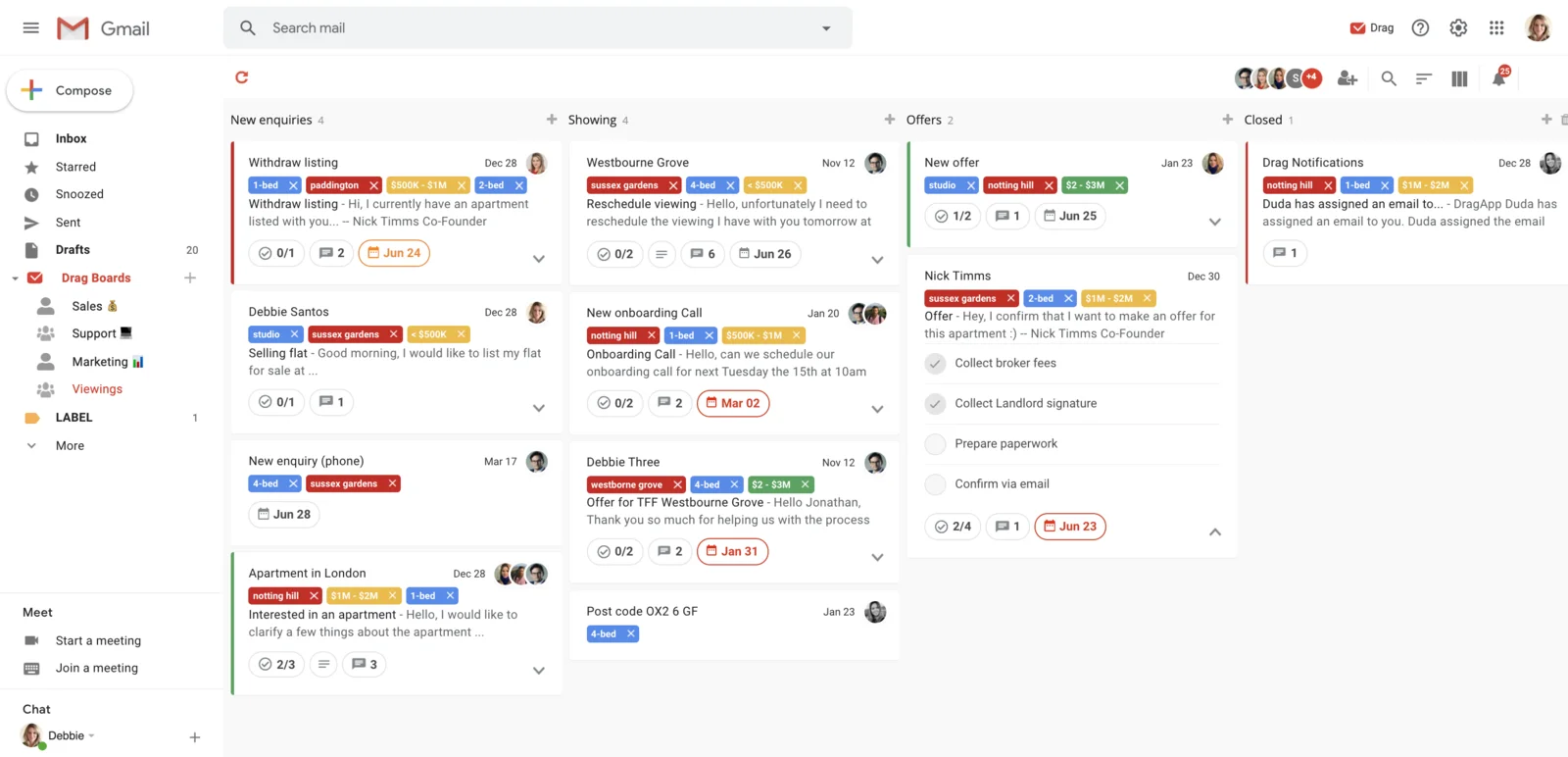
Drag is a shared inbox solution that focuses on providing a simple and intuitive user experience. The platform offers a clean interface, making it easy for teams to manage team inbox, assign tasks and collaborate on emails. Key features included are shared inbox, customizable email templates, email scheduling and integration with popular apps.

What are the 4 Biggest Mistakes When Managing a Shared Inbox?

Managing a shared inbox seems simple, but small oversights can quickly lead to missed messages, duplicate replies, and frustrated customers. Here are the most common mistakes teams make.

No Clear Ownership 

Without assigned responsibility, multiple agents may end up replying to the same email at once. Or worse, everyone assumes someone else will handle it. This leads to delays, confusion and inconsistent customer experiences over time.

Ignoring Email Prioritization 

Treating every message with equal urgency means important issues often get buried under routine queries. Customers with real problems feel ignored, which quickly damages trust and satisfaction.

Lack of Internal Communication 

Agents working in isolation without shared notes or context risk sending conflicting replies to customers. This creates a disjointed, unprofessional experience that frustrates both customers and teammates alike.

Skipping Performance Tracking 

Not monitoring response times, resolution rates or agent workload creates dangerous blind spots. This bottlenecks go unnoticed that quietly pile up over weeks or months. It is impossible to improve processes or hold anyone accountable with proper data.

Here are simple solutions to each problem.

  • Assign clear ticket ownership using tags, roles or automated routing rules.
  • Set up priority tags or SLAs to flag urgent messages instantly.
  • Use shared internal notes and @mentions to keep everyone informed.
  • Track key metrics regularly through dashboards to spot and fix bottlenecks.

Team Collaboration Made Easy with Shared Inbox

Organizations need modern communication systems that keep their business running smoothly while enabling agents to make better use of their time in complex interactions. Leveraging a shared inbox is what makes team collaboration seamless. 

Proper team collaboration enhances security and compliance measures, making it a great choice for organized communication. A good team inbox gets a team going quickly no matter where members are situated and in which time zone.

FAQs about Shared Inbox Solution

A team inbox allows multiple team members to access and respond to emails in one centralized location, reducing the burden on individual email accounts. A team inbox helps to streamline communication and prevent emails from getting lost by distributing the workload. The collaborative approach helps to reduce email overload for everyone involved.

Yes, shared inboxes are secure when hosted on reputable platforms. They typically include below process to protect sensitive communications:

  • Two-factor authentication
  • IP whitelisting
  • end-to-end encryption.

Yes, shared mailboxes support external emails sent to a common address, which lands directly in the shared inbox. It becomes instantly visible and actionable for every team member with access.

  • Accessible to all authorized team members
  • No emails are missed or siloed
  • Enables real-time collaborative responses
  • Works just like a regular inbox for senders

Shared inbox allow multiple users to access and manage emails from one central account, making collaboration easier. Other tools, such as individual email accounts lack the ability for multiple users to work together in real-time on one email account. Team inbox streamline communication and enhance teamwork within a company.

Effective email management is all about a few key habits that keep communication organized and prevent tasks from missing. Consistency across these makes the biggest difference for teams handling high email volumes daily.

  • Centralize all channels into one inbox
  • Automate repetitive tasks like routing and tagging
  • Set response-time priorities based on urgency
  • Use notes and comments to collaborate seamlessly